Application Passphrase Protection
Application passphrase protection adds a second security boundary to a SimpleDMS installation. It encrypts the application's root identity before storing it in the main database. SimpleDMS then requires the passphrase after every restart.
The passphrase is separate from every user account password. It is an operational secret for the complete SimpleDMS instance, not a sign-in credential.
Additional Security
SimpleDMS encrypts files with tenant-specific identities by default. Each tenant identity is encrypted with the application's root identity. The root identity also protects the S3 secret access key and mailer password stored in the system configuration.
Without passphrase protection, the root identity is stored unencrypted in the main database. Enabling protection encrypts it with the application passphrase. Someone who obtains a copy of the database must then know or derive the passphrase before they can decrypt tenant identities and protected configuration secrets.
Passphrase protection does not encrypt the SQLite databases as a whole. Names, document metadata, OCR text, account data, and other ordinary database fields remain readable to someone with database access. It also does not protect a running, unlocked process because the root identity must remain available in memory.
Document contents receive this additional protection only when file encryption is enabled. If you initialized the installation with SIMPLEDMS_DISABLE_FILE_ENCRYPTION=true, the passphrase does not encrypt existing document objects.
Use a strong, unique passphrase to resist offline guessing, and store it in a secure password manager. SimpleDMS provides no recovery process for a lost passphrase. Always use HTTPS for the unlock page and API because unlocking sends the passphrase to the application.
Lock the Application
You need a SimpleDMS account with the system-wide Admin role to enable or change passphrase protection.
- Sign in to SimpleDMS and open «System» from the main menu.
- Find the «App status» card and select «Set passphrase».
- Leave «Current passphrase» empty when enabling protection for the first time.
- Enter the new passphrase twice and select «Save».
- Store the passphrase securely, then restart the SimpleDMS process or container.
Setting a passphrase does not lock the running process. SimpleDMS keeps the already loaded identity in memory and continues operating. There is no separate «Lock now» action. The application becomes locked when the process starts again.
If protection is already enabled, restarting SimpleDMS is sufficient to lock it. For a Docker Compose installation, run:
docker compose restart simpledms
During the next startup, SimpleDMS pauses normal initialization and serves a maintenance page at its usual address. Accounts, documents, and regular application routes remain unavailable until an operator unlocks the application.
Unlock in a Browser
Add the unlock query parameter to your normal SimpleDMS address:
https://dms.example.com/?unlock
The parameter only displays the unlock form. It does not contain a secret or unlock the application by itself. Enter the application passphrase and select «Unlock application».
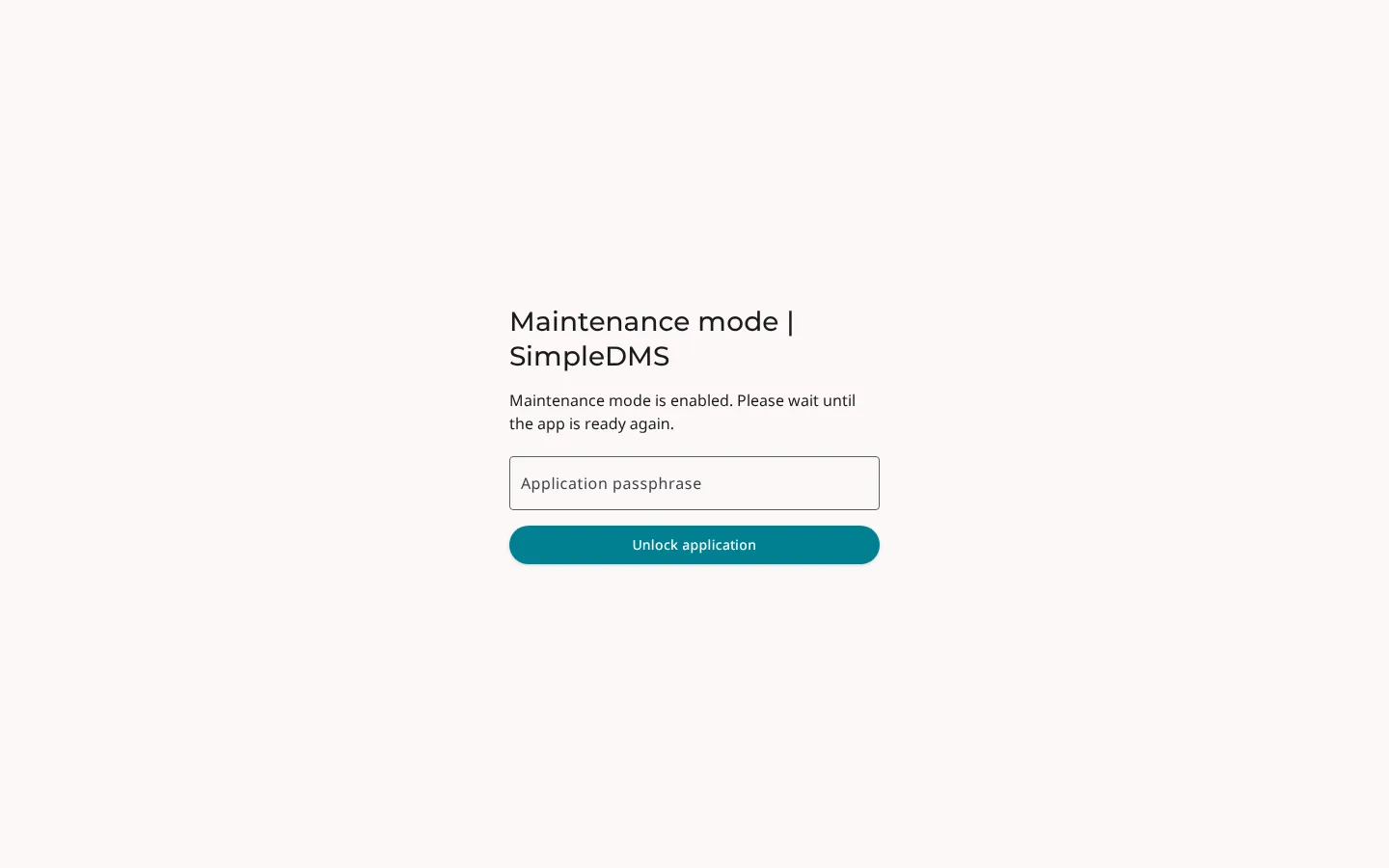
After a valid submission, the page reports that SimpleDMS is starting and waits for the regular application listener. It then removes the unlock parameter and loads the normal application. A wrong passphrase leaves the application locked so you can try again.
The browser workflow requires JavaScript. You must unlock SimpleDMS again after every later restart because unlocking does not remove passphrase protection.
Unlock Through the API
The maintenance listener exposes one unlock endpoint:
POST /-/unlock-cmd
Content-Type: application/json

{"passphrase":"your application passphrase"}
The endpoint uses the same passphrase validation as the browser form. It does not require the ?unlock parameter or a signed-in account. The application passphrase is the only credential required for this endpoint.
The relevant responses are:
200 OKwhen the identity was decrypted and startup can continue400 Bad Requestfor malformed input, a missing passphrase, or an invalid passphrase403 Forbiddenfor an unsafe cross-origin browser request429 Too Many Requestswhen the client exceeds the unlock rate limit
SimpleDMS accepts at most five non-empty unlock attempts per client address in a rolling one-minute window. Further requests receive 429 Too Many Requests and a Retry-After header containing the number of seconds to wait. Malformed requests and empty passphrases do not consume an attempt. When a trusted reverse proxy is configured, SimpleDMS derives the client address from its trusted forwarding chain. Forwarding headers from untrusted peers are ignored.
A successful response can arrive shortly before the normal application listener is ready. An API client should retry the regular application URL until startup finishes. The unlock endpoint is available only while the startup maintenance listener is running.
Always send the request over HTTPS. Do not put the passphrase in a URL, query parameter, command-line argument, or log output. Unlock responses use a no-store cache policy.
Unlocker Command
The SimpleDMS source repository includes an interactive API client in cmd/unlocker. From a source checkout, run:
go run ./cmd/unlocker https://dms.example.com/-/unlock-cmd
You can also build a standalone binary:
go build -o unlocker ./cmd/unlocker
./unlocker https://dms.example.com/-/unlock-cmd
Pass the complete endpoint URL. The unlocker prompts for the passphrase without displaying it, safely encodes it as JSON, and sends the request. Entered characters such as quotation marks and backslashes are preserved. The command prints a success message when the final HTTP response has status 200; for other statuses, it prints the status and response body.
The unlocker has no TLS-related flags. It verifies HTTPS certificates through Go's default trust store and cannot ignore certificate errors. Add a private certificate authority to the host's trust store, or configure Go's trust-store environment on a supported operating system, before using the command with an internally issued certificate.
Change or Remove Protection
Open «System» while SimpleDMS is running and unlocked. The «App status» card provides «Change passphrase» and «Remove passphrase» actions. Both require the current passphrase.
Changing the passphrase re-encrypts the same root identity. It does not re-encrypt every document. Removing protection stores the root identity unencrypted in the main database, and future restarts no longer pause for an application passphrase.
More information