AI assistants (MCP)
AI assistants for your documents
You want to find invoices, summarize a contract, or classify incoming documents. SimpleDMS provides an MCP server for this. The Model Context Protocol (MCP) lets AI assistants such as Claude Code or Codex work directly with your documents in SimpleDMS.
Try free for 30 days Set up MCP
Full range of functions, free for 30 days. No credit card required.
Find & understand documents
Through MCP, your assistant searches for documents, reads extracted text, and retrieves original files. Ask it to find invoices from a particular period or documents with specific Tags. It narrows the search by document types and field values, such as invoices with an amount above a threshold you specify. You open the matching documents through their SimpleDMS links.
If you ask about a notice period, a payment term, or a particular agreement, the assistant finds the relevant document and uses its contents to answer. This grounds the conversation in your records.
Example requests
«Which invoices arrived in September?»
«What does the contract say about the notice period?»
Evaluate contents
Summarize contracts & other documents
Have the assistant summarize the main points of a contract or a longer document. You specify the focus, such as duration, costs, and obligations, and the assistant presents the contents from SimpleDMS that are relevant to your question.
Compare documents
Ask the assistant to compare two quotes or review several documents against the same criteria. It retrieves their contents and compares the described services, prices, or contract terms in the conversation.
Classify & file
With write access, your assistant can also change documents and metadata in SimpleDMS.
Transfer details from invoices
The assistant extracts an invoice date, amount, or reference number, shows it to you, and enters it into suitable document fields. The values are then available for searching and filtering.
Classify incoming documents
The assistant reviews your Inbox and suggests document types and Tags that fit your existing document types, Tags, and fields. You discuss the suggestions before it assigns them.
Upload new documents
A compatible assistant uploads new files to the Inbox through the MCP connection, inspects them, and continues with classification.
File Inbox documents
After classification, the assistant moves a document into an existing or new folder. If you work without folders, it completes Inbox processing without moving the document.
Organize existing records
The assistant renames filed documents or brings the records for a project together in one folder. Existing metadata and notes stay connected to the documents.
Record findings as notes
The assistant saves a summary or an open question as a note on the document. It also reads existing notes, and coworkers find the information directly on the document.
Extend your filing structure
When you need to extend your filing structure, the assistant creates Tags, fields, and document types or renames existing definitions. For example, you have it build a document type with suitable date and amount fields or organize Tags into groups.
This structure is then available in the web application as well.
Example requests
«Create a document type for rental agreements with fields for start date and monthly rent.»
«Put the project Tags into their own tag group.»
Read or write access
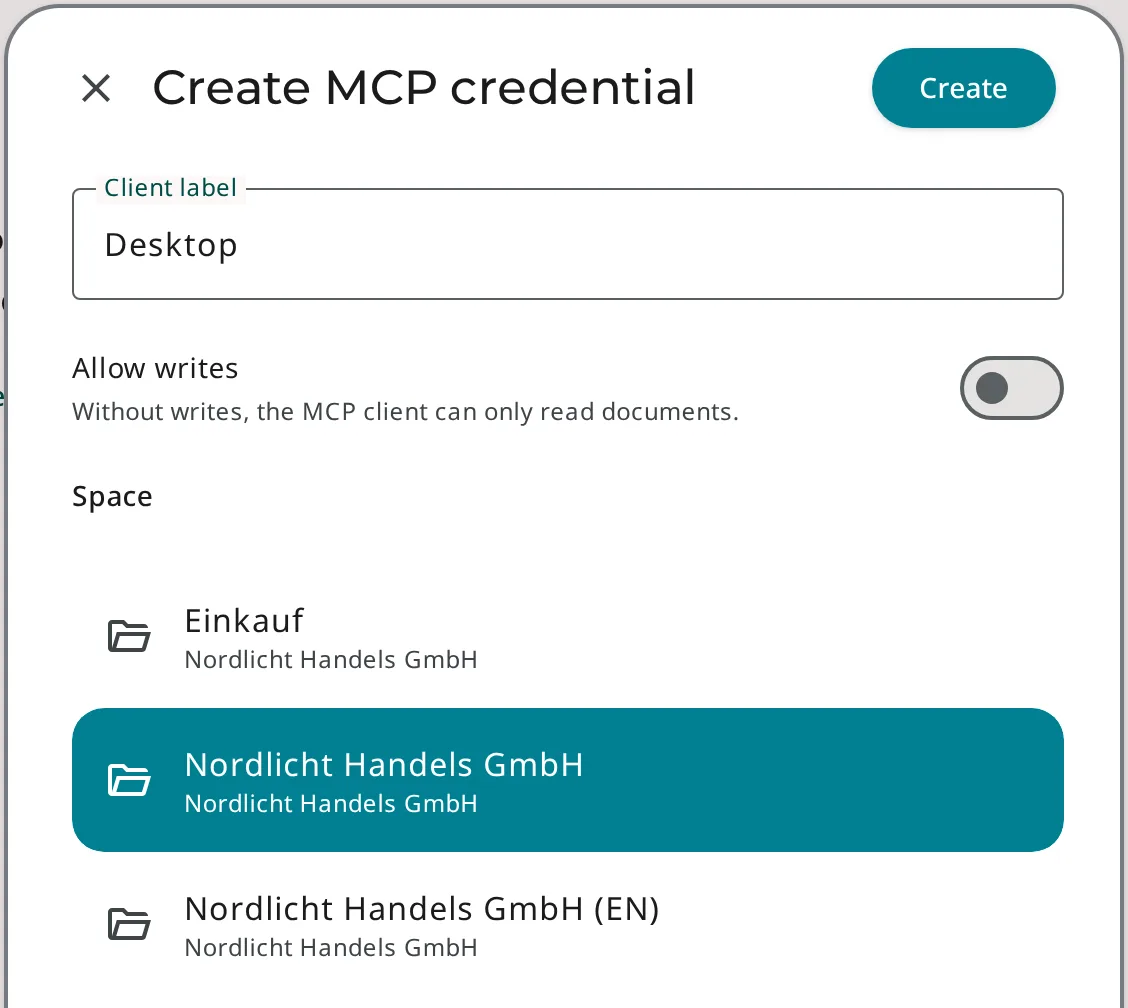
You create separate MCP credentials for a Space for each assistant. Without write access, it can only search and read. If it should also upload, classify, manage notes, or file documents, you explicitly allow write access.
You revoke credentials individually, without setting up other connections again.
How you stay in control
- Credentials per assistant
- Access to one Space
- Write access only when allowed explicitly
- Revocable individually
Results stay with the document
Metadata, notes, and filing changes made through MCP appear in SimpleDMS. You continue working on the same documents in the web application instead of manually transferring results from the conversation.
This connects document assistance with your existing filing structure and keeps the resulting information available to your team.
Supported AI assistants
An assistant must be able to connect with a server address and a token. These are the most common options as of November 2026.
Claude by Anthropic
Claude Code connects directly with a server address and a token. The Claude apps can connect if the dialog for custom connectors shows the «Request headers» setting. Anthropic currently offers it to only some organizations.
Codex by OpenAI
Codex connects with a server address and a token, whether through the command line, the IDE extension, or the ChatGPT desktop app. Regular ChatGPT chat cannot connect, because according to OpenAI it cannot present custom API keys.
Self-hosted assistants
Open WebUI, LibreChat, and LM Studio also connect with a server address and a token. They run on your own computers or servers and can work with local language models.
The setup guide shows which values to enter in the assistant.
Frequently asked questions
What does an AI assistant need for the connection?
It must be able to connect to an MCP server with a server address and a token. Assistants that only offer a browser sign-in for MCP connections cannot be connected. This currently applies to regular ChatGPT chat.
Can the assistant access all my Spaces?
No. Credentials apply to exactly one Space. For another Space or access mode, you create new credentials.
Who processes the data my assistant retrieves?
Whatever your assistant retrieves from SimpleDMS is processed by the assistant's provider under its own terms. Check whether its privacy policy fits your business. With a self-hosted assistant and a local language model, the data stays on your own infrastructure.